
An unexpected AI development stole the spotlight from Google I/O. Here’s whatAndrej Karpathy's announcement of joining Anthropic garnered 17 million views on X, surpassing Google I/O's livestream views of 8.5 million Published on: May 20, 2026 11:02 AM IST By Sanya Jain Share via Copy link

‘Completely false, fabricated’: TMC responds to ‘leaked’ municipal notice to MP Abhishek BanerjeeThe TMC statement urged journalists to visit the addresses mentioned or call the numbers cited in the notice to verify the facts. Updated on: May 20

Cockroach Janata Party vs National Parasitic Front: The new political battle brewing in IndiaFounded by Abhijeet Dipke, the Cockroach Janata Party has rapidly exploded across X and Instagram.drawing followers by the thousands. Updated on: May 20

Editorial independence is core to our work. Some links may earn us a commission, without influencing our opinions.This mistake almost cost me my GST refund at Changi Airport; Buy these Charles & Keith handbags in India insteadA simple mistake at Changi Airport nearly cost us our GST refund after a

The United States and Cuba held talks this week on a U.S. offer of $100 million in assistance, which Washington has dangled as an incentive for reforms, a U.S. official said on Tuesday (May 19, 2026). Mike Hammer, the acting U.S. ambassador to Havana, met on Monday (May 18

The legendary GTI badge goes electric for the first time. The Volkswagen ID Polo GTI Electric was originally previewed as the ID. 2all concept in 2023. It has a 0 to 100km/h sprint time of 6.8 seconds. Volkswagen has unveiled an electric version of its famous ID. Polo hatchback. While the new

Mouni Roy brings India to Cannes with chic patola print gown, dazzles the night in midnight blue dressAt Cannes, Mouni Roy donned two striking looks, including a chic midnight-blue gown and a stunning patola-embroidered dress. Published on: May 20

Bengaluru techie explains why life in Germany felt calmer than India: ‘Never opened laptop after work’A Bengaluru techie said life in Germany felt quieter and more balanced than his daily routine in Bengaluru. Published on: May 20, 2026 10:05 AM IST By Mahipal Singh Chouhan Share via Copy link
How to keep your Apple Watch on watch face instead of auto-launching apps
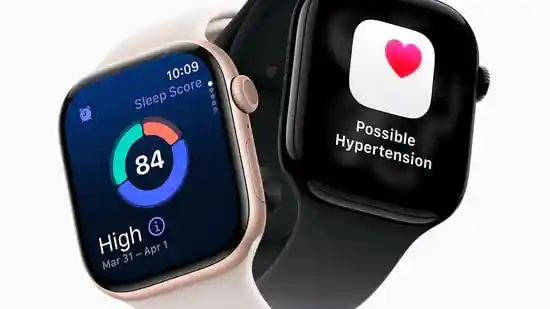
If you've ever raised your wrist expecting to see your favourite watch face, only to find a random app or Smart Stack instead, you're not alone. With the arrival of watchOS 10, Apple added support for Live Activities and expanded auto-launching behaviours for certain apps. While convenient for quick updates, they can sometimes get in the way of simply checking the time. Fortunately, there are ways to keep your Apple Watch focused on the watch face whenever you glance at it.
Live Activities on Apple Watch act like real-time widgets, showing updates such as sports scores or food delivery progress without sending multiple notifications. However, they can automatically replace your watch face while active.
To disable this behaviour:
-Open the Settings app on your Apple Watch.
-Tap General, then select Auto-Launch.
-Open Live Activities Settings at the top.
From here, you can disable auto-launching Live Activities while keeping them available through gestures like swiping up or double-tapping to open the widgets view. You can also stop them from appearing when your wrist is down and the screen is dimmed, ideal for users who prefer minimal distractions.
Within the same settings section, Apple lets you control how media apps behave. By default, media apps such as Music or Podcasts auto-launch when playback starts. If you'd rather keep your watch face visible, you can turn off Live Activities for media apps.
Alternatively, if you like the older behaviour, where music apps automatically open during playback, you can re-enable it. This flexibility ensures you can decide whether your Apple Watch prioritises your now-playing screen or your custom watch face.
For even finer control, scroll to the bottom of the Live Activities Settings page. Here you'll find a list of supported apps, like Alarms, Compass, Mindfulness, Stopwatch, Timers, Voice Memos, Wallet, and Workout, each with its own toggle. You can choose between:
-Disable Live Activity
-Auto-launch Smart Stack
-Auto-launch app
This means your watch will only show what you want, when you want it.
If you own a model with the Depth app, such as the Apple Watch Ultra, it automatically launches when submerged. You can change this under Settings > General > Auto-Launch, ensuring your watch face stays visible even underwater.
With these tweaks, your Apple Watch will stay focused on its core purpose, displaying your chosen watch face whenever you lift your wrist. Whether you prefer simplicity or smart features, watchOS 10 gives you the control to balance both.
Source: HindustanTimes
Related Posts: Samsung’s Galaxy Watch Will Soon Be A Powerful Health Tool On Your Wrist Google Pixel Watch 4 users to get ‘Double pinch’ and ‘Wrist turn’ controls soon Thunder fans expecting to celebrate NBA title see hopes dashed as Indiana forces Game 7 Watch your favourite matches in 4K with the best TVs for sports on Amazon Sale Top 5 ergonomic mice to reduce wrist strain and boost productivity Carlos Alcaraz's French Open three-peat dreams dashed as wrist injury forces withdrawal Deepinder Goyal claims Temple outperforms screenless wrist tracker in heart rate tracking Why 20-Year-Olds Are Developing Wrist Pain And ‘Text Neck’ Apple Watch Series 11 vs Watch Ultra 3

The All-India Organisation of Chemists and Druggists (AIOCD), which represents nearly 12.4 lakh chemists, pharmacists and drug distributors across India, has announced a nationwide strike on 20 May. The protest is expected to disrupt the supply of medicine in several parts of the country for the
1 hours ago

One of the most expensive Korean films ever made, this epic sci-fi begins as a "breathless rollercoaster ride" and mashes up The Terminator, Predator, Aliens and Avatar. The films that compete for the Palme d'Or at the Cannes Film Festival are known for their depth
1 hours ago

Union Education Minister Dharmendra Pradhan on Tuesday chaired meeting to assess preparations for the forthcoming NEET (UG) Re-Examination and demanded a foolproof conduct under strict security protocols. During the high-level meeting, Pradhan stressed on the need for complete integrity and
2 hours ago

Cornell professor talks AI chaos, and dismissing AI writersThe biggest AI developments, decoded. 20 May 2026. Published on: May 20, 2026 8:00 AM IST By Vishal Mathur Share via Copy link Cognitive warmup. Actor, comedian and filmmaker Seth Rogen has some choice words for creatives using AI to
1 hours ago

England captain Nat Sciver-Brunt could miss next month’s T20 World Cup after the all-rounder was ruled out of her side’s warm-up series against New Zealand and India. Sciver-Brunt tore her left calf while playing for the Blaze in domestic cricket earlier this month and was subsequently ruled
2 hours ago

Congressman Thomas Massie, one of the most vocal Republican critics of Donald Trump, has lost his fight for re-election to a challenger endorsed by the president. Ed Gallrein, a former Navy Seal, will now compete in November's midterm election after his victory in the Kentucky primary on Tuesday
1 hours ago

CHSE Odisha Class 12 Result 2026 LIVE: The Council of Higher Secondary Education (CHSE), Odisha, will declare the Class 12 (+2) examination results for 2026 today, May 20, at 12:30 PM. Students who appeared in the 12th board examinations can check and download their results from the official
2 hours ago

Qatar said on Tuesday (May 19, 2026) that U.S.-Iran negotiations, mediated by Pakistan, required more time to reach a deal, a day after President Donald Trump said he had postponed planned attacks to give the process a chance. "We are supportive of the diplomatic effort by Pakistan that has shown
1 hours ago

Stars are often photographed everywhere they go, but Salman Khan seemed to completely lose his cool after paparazzi surrounded him outside Mumbai’s Hinduja Hospital in Bandra on Tuesday night. The actor had reportedly visited the hospital to see a family member when photographers gathered outside
1 hours ago

May 20, Birthday Horoscope: Here's what the tarot cards have in store for youIf your birthday falls on May 20, here’s what your year ahead looks like, as per Tarot. Updated on: May 20, 2026 11:02 AM IST By Kishori Sud Share via Copy link If you were born on May 20
1 hours ago

Aaron Rodgers seen with wife Brittani ‘Starlight Leszczyński’? Viral post-marriage pic, Coyote Ugly claims fact-checkedA photo has gone viral allegedly showing Pittsburgh Steelers QB Aaron Rodgers with wife Brittani, and the caption identified her as ‘Starlight’ Leszczyński
1 hours ago

For over two decades, Chef Kunal Kapur has been one of the most recognisable faces of Indian cuisine from judging MasterChef India to championing regional flavours on global platforms. But today, the celebrity chef, restaurateur, author and television personality believes the future of dining is
1 hours ago

The ongoing war in West Asia and the rising costs of fuel and fertilizers give India an opportunity to enhance fertilizer use efficiency and moderate demand. India produces 80% of its urea requirement domestically and imports the rest while also boosting domestic production capacities to become
1 hours ago

For more than two decades, football fans of a certain vintage relied on a specific piece of cultural shorthand whenever the red-and-white half of North London let them down. In the classic The IT Crowd episode “Are We Not Men?", a pair of socially awkward computer nerds used an automated web
1 hours ago

Saiju Kurup is ecstatic. With Bharathanatyam 2: Mohiniyattam, which he acted in and co-produced,trending on streaming after raking in crores at the box office, the actor says he is still not able to process it. “I ask myself if this is all for real
1 hours ago

Bhopal dowry death victim's co-actor Swetaa Varma ‘in shock’, doubts suicide angleSwetaa Varma, who acted with the victim in a Telugu film, has reacted to her sudden death and said she is still in shock. May 20, 2026, 10:33:34 IST By Abhimanyu Mathur Share via Copy link A former co-star of the
1 hours ago

The Indian rupee slumped to a record low of 96.9 against the United States dollar on Wednesday. The currency had opened at 96.8. The Indian currency had closed at an all-time low of 96.5 against the US dollar on Tuesday. The slump has come amid elevated global oil prices and economic headwinds
1 hours ago

The Directorate of Government Examination, Tamil Nadu (TNDGE) has declared the SSLC Class 10th results 2026. Students who had appeared for the Tamil Nadu TNDGE SSLC 10th Result can go to the official website of tnresults.nic.in or dge.tn.gov.in and check their results
1 hours ago

Sebastian Stan recalls when Donald Trump tried to stall The Apprentice's Cannes premiere, calls out censorshipSebastian Stan, who played Donald Trump in his biopic The Apprentice, has slammed the US President and his policies. May 20, 2026, 10:21:54 IST By Abhimanyu Mathur Share via Copy link
1 hours ago

In recent days, Trump has repeatedly warned that if an agreement is not reached quickly, Iran will face difficult consequences. Iran, on the other hand, has said that it will respond strongly to any attack. New Delhi: In a significant development
1 hours ago

US President Donald Trump has endorsed Texas Attorney General Ken Paxton in his bid to unseat incumbent Senator John Cornyn in next Tuesday's Republican primary run-off race. By siding with Paxton, Trump is supporting a Texas politician who has long been a close ally of the president – but also
1 hours ago

BMW has revealed a manual-only M3 CS with rear-wheel drive and 543 bhp as a farewell model for the sixth-generation M3, targeting enthusiasts still wanting an old-school performance sedan experience. BMW making a manual-only BMW M3 CS in 2026 feels almost rebellious at this point
1 hours ago

Referring to the notices issued by the civic body, Paul alleged that several properties linked to Banerjee, his family and Leaps and Bounds company had come under scrutiny. New Delhi: In a significant development, the TMC-run Kolkata Municipal Corporation (KMC) has issued notices to several
1 hours ago

Rupee Weakens Further: The Indian rupee fell by 33 paise in early trade on Wednesday to touch a fresh record low of 96.89 against the US dollar, extending its losses for the past several sessions. It further weakened in the early trade session to drop to 96
1 hours ago

DRDO successfully tests ULPGM-V3 missile | All about the indigenous weaponThe defence ministry informed in a statement that the trials were conducted at a DRDO test range near Kurnool in Andhra Pradesh using an integrated GCS. Updated on: May 20
4 hours ago

The Trinamool Congress’ Falta candidate Jahangir Khan on Tuesday announced that he has withdrawn from the repolling in the Assembly constituency, two days ahead of voting. “This decision is for Falta’s development and the public good, following the chief minister’s special package
4 hours ago

Who is Andrej Karpathy? OpenAI cofounder and one of AI’s most influential figures joins AnthropicAndrej Karpathy, a founding member of OpenAI, has joined Anthropic. The 39-year-old announced his move to Anthropic on Tuesday. Updated on: May 20
4 hours ago


